SmartKiosk Totem Configuration
Guide to configuring the Android device for use with the Queue Management Totem on SmartKiosk hardware.
This procedure allows you to:
- install the application on the device
- configure automatic startup
- restrict access to operating system functions
- set the device to kiosk mode
Prerequisites
Before proceeding, make sure that:
- The device runs Android 8 or later
- The device is connected to the network
- The Totem application APK file is available
- ADB (Android Debug Bridge) is installed on the computer used for installation
- The device has the OS Tools application active
APK Installation
The application must be installed via ADB.
To enable ADB:
- Open the OS Tools application
- Go to the Development section
- Enable ADB Debug Mode
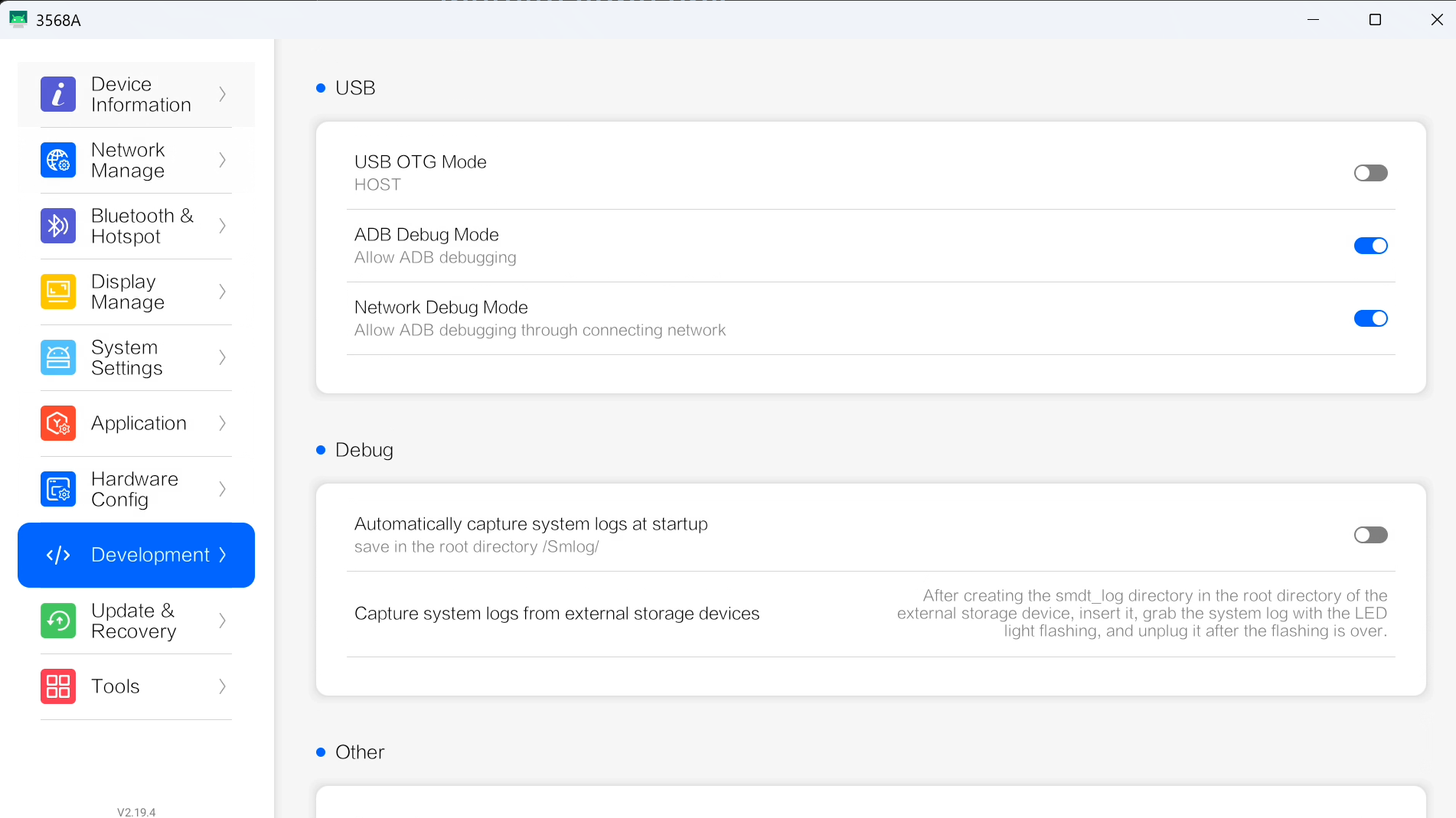
Connect the device to the computer via network or USB and run the command:
adb install -r totem.apk
Where:
-rallows updating the app if already installedtotem.apkis the application file
Once the installation is complete, the application will be available on the device.
Totem Configuration
Startup Application Setup
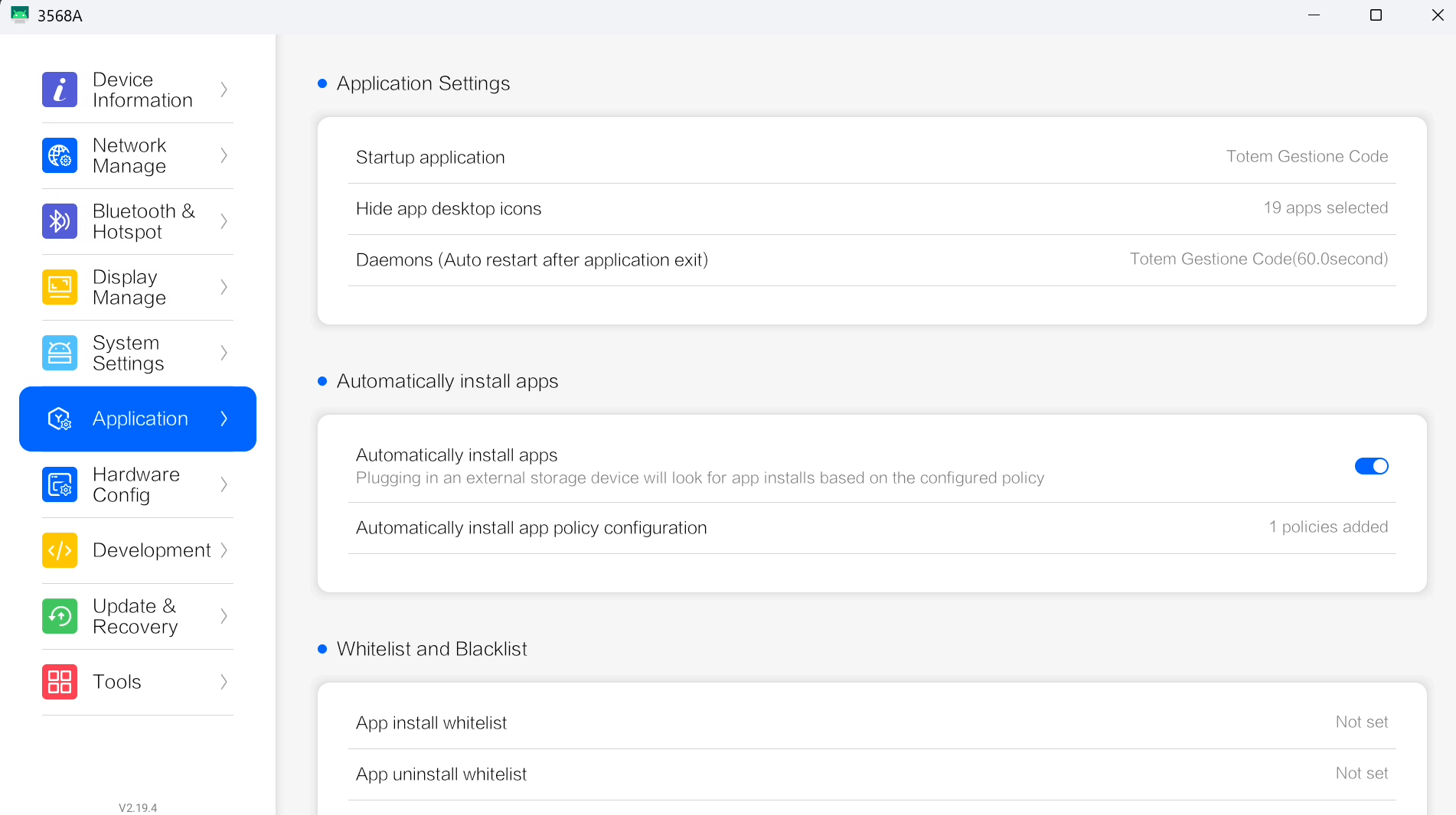
Once the application is installed, it must be set as the application launched at startup:
- Open OS Tools
- Go to Application
- Set the Startup application entry and select Totem Elimina Code
- Set the Daemons entry to Totem Gestione Code with an interval of 60 seconds
Hide Applications (optional)
To prevent users from accessing other system applications, you can hide Android application icons.
Procedure
- Open OS Tools
- Press Hide app desktop icons
- Select all applications that should not be visible
Leave only the following visible:
- OS Tools
- Totem Gestione Code
Kiosk Mode Setup
Kiosk mode restricts access to operating system features and allows the device to be used exclusively as an interactive totem.
Procedure
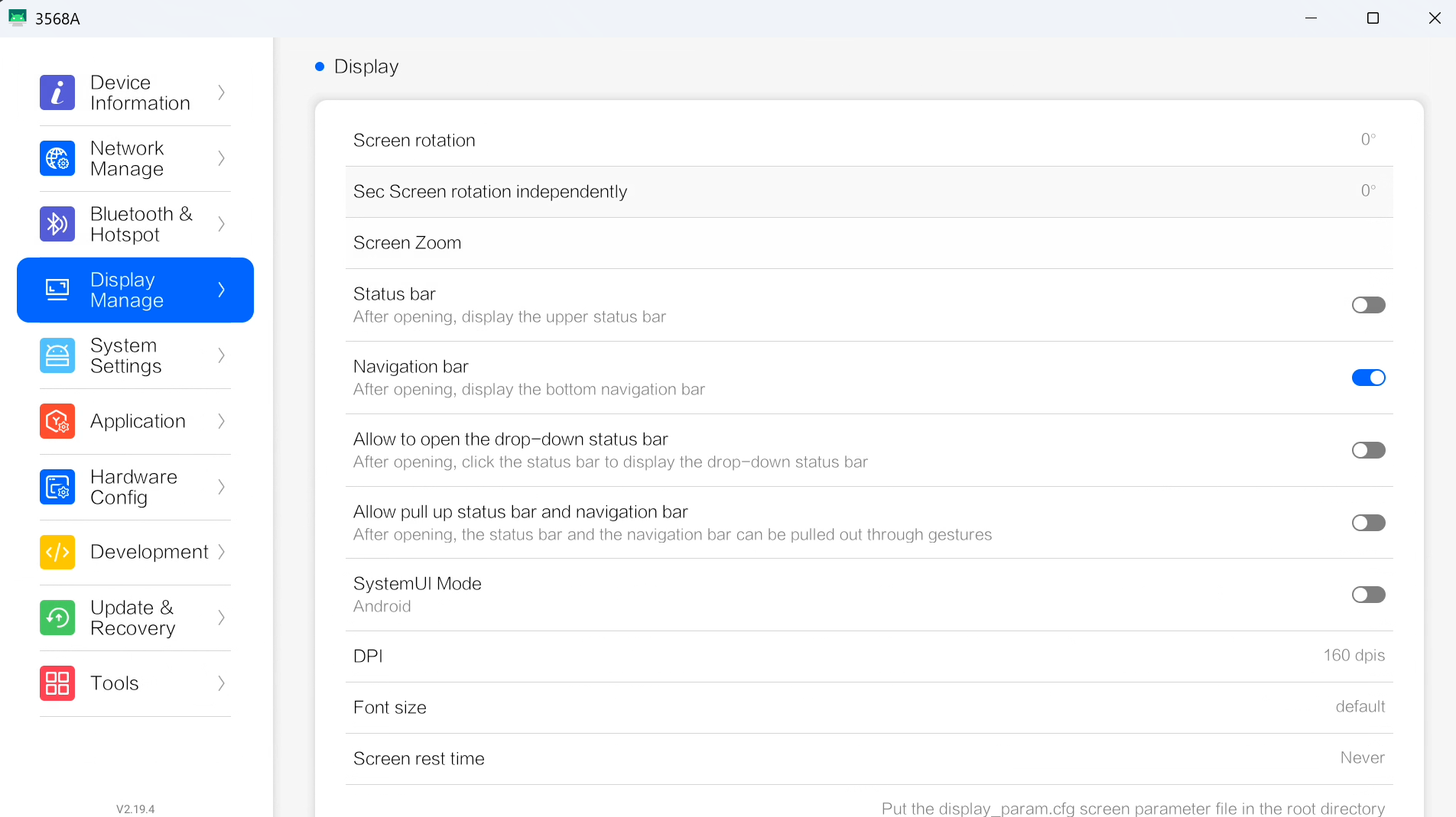
- Open OS Tools
- Use the Screen rotation entry to set the screen rotation if needed
- Disable Status bar
- Disable Navigation bar
- Disable Allow to open the drop-down status bar
- Disable Allow pull up status bar and navigation bar
Accessing Administrator Mode
When kiosk mode is active, it is no longer possible to access Android directly via the system bars.
To access the device configuration, use administrator mode and press the Close app button.
The application will close and you will be able to access the Android screen.